
How to create a Company
This article provides the steps for creating a new child Company in the Cloud Marketplace.
There are two types of companies that can be created in the platform: Resellers and Customers. A reseller is a company that can contain child companies of its own. A reseller can create pricelists to determine what services will be available to those child companies and what their pricing can be, as well as generate reports to track service consumption. A customer is a company that can only consume services.
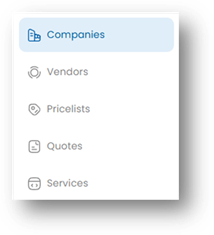
- Start by navigating to the Companies page by clicking on Companies in the left-hand menu.
- On the Companies page, click on the New Company button.
- Select whether you are creating a New Customer or New Reseller company.
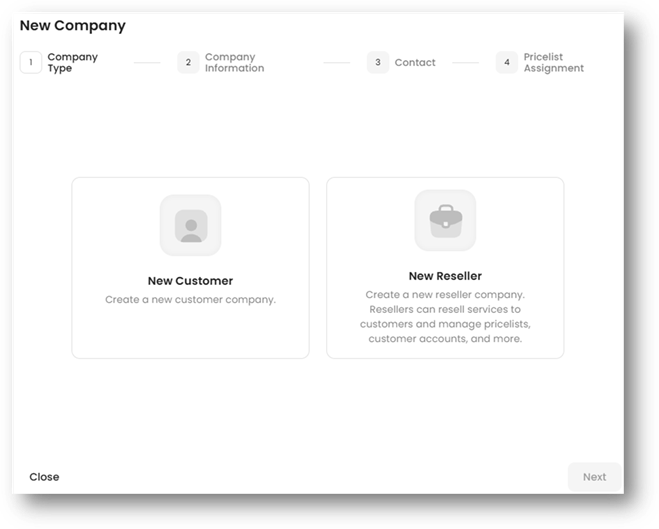
- Click the Next button to proceed.
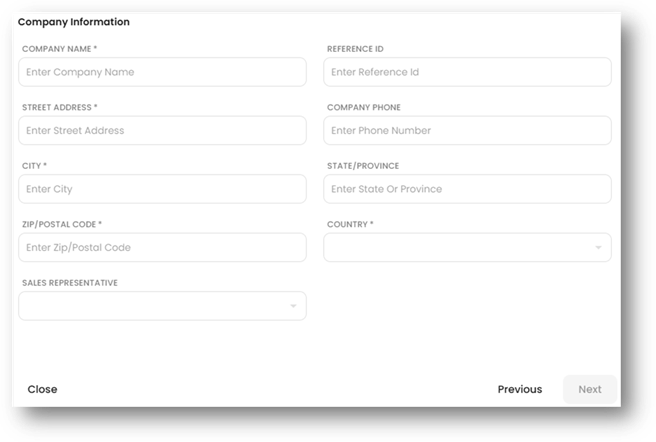
- Enter the Company information. This will be the name, address, and details for the company you are creating. Click the Next button to proceed.
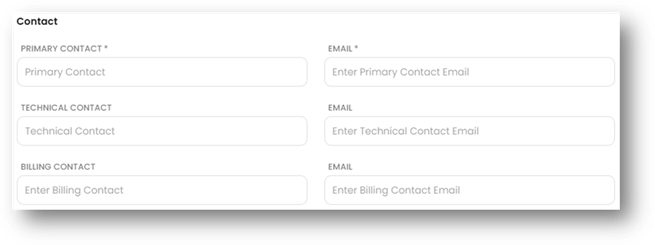
- Enter the contact information for the company. Only the Primary Contact is required, but you can also enter an optional Technical Contact and Billing Contact for the company.
- Reseller type companies also have the option to enter Support contact information. This information will appear to any of the reseller’s child companies when opening their My Company page.
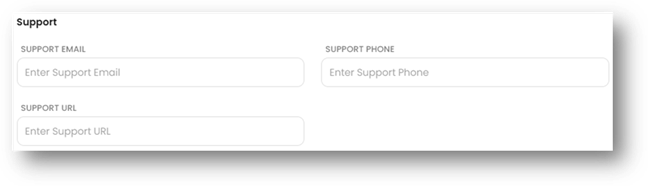
- Reseller type companies also have the option to enter Support contact information. This information will appear to any of the reseller’s child companies when opening their My Company page.
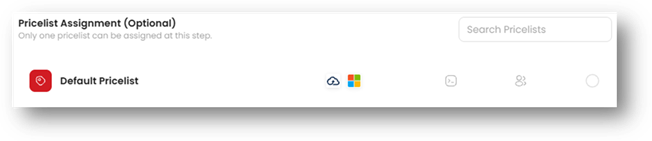
- (Optional) Select a pricelist to assign to the new company. Multiple pricelists can be selected, and you will receive a warning if the selected pricelists contain conflicting or duplicated products. You can also choose not to assign a pricelist at this time.
- Click the Create button to complete the process.